1. Introduction
Routina is a family routine app that helps parents build structured daily schedules for their children. Kids complete tasks, earn reward points, and redeem those points from a catalogue you design — all within a colourful, child-friendly interface.
Whether you have one child or several, Routina keeps every family member motivated and on track. This guide walks you through every feature, step by step.
2. Getting Started
a. Creating your account
- 1Open the Routina app and tap Sign Up.
- 2Choose your sign-in method: Email and password, Continue with Google, or Sign in with Apple.
- 3You are now signed in as a parent.
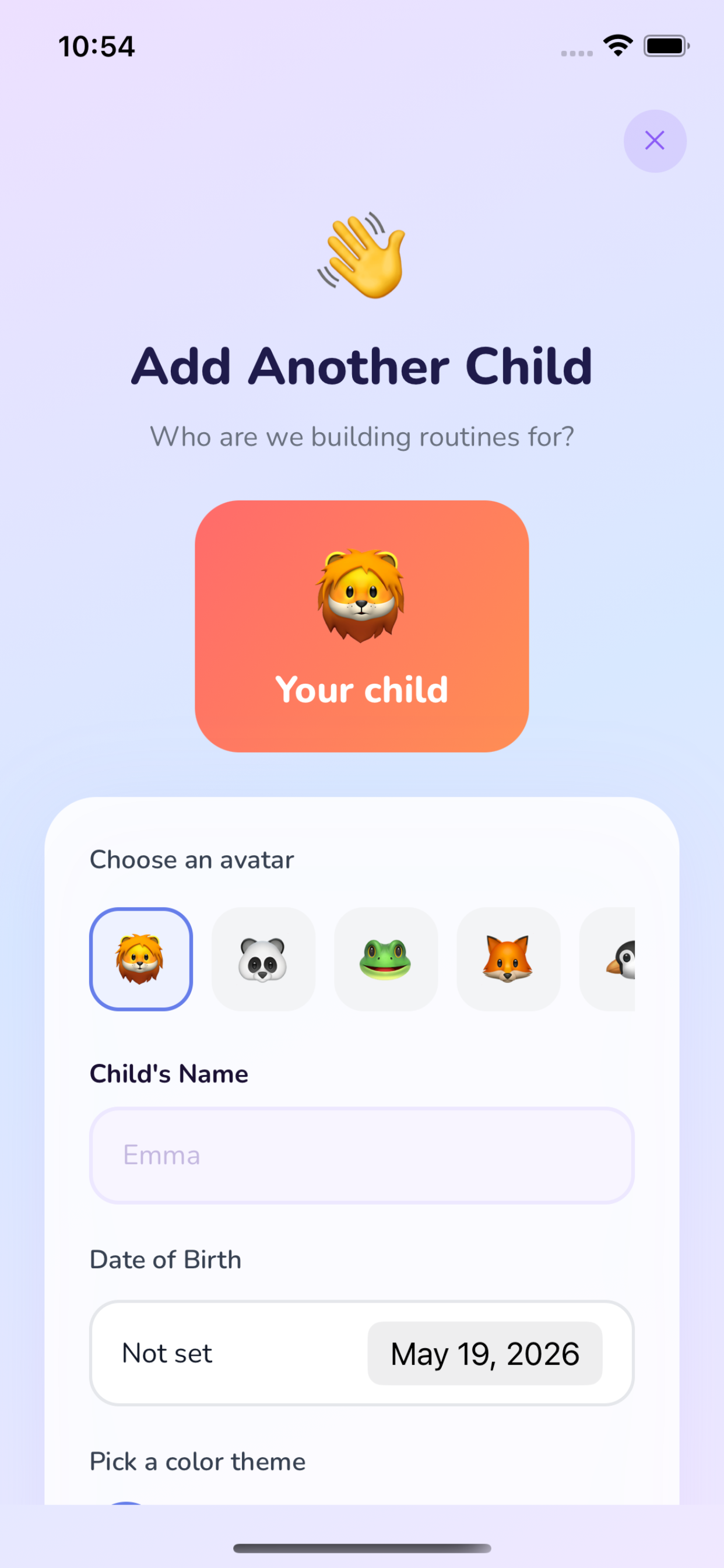
b. Adding your first child
- 1On the home screen, tap Add Child (or the + button in the child switcher at the top).
- 2Enter your child's name.
- 3Choose an avatar for their profile.
- 4Pick a color theme.
- 5Optionally enter their date of birth.
- 6Tap Save.
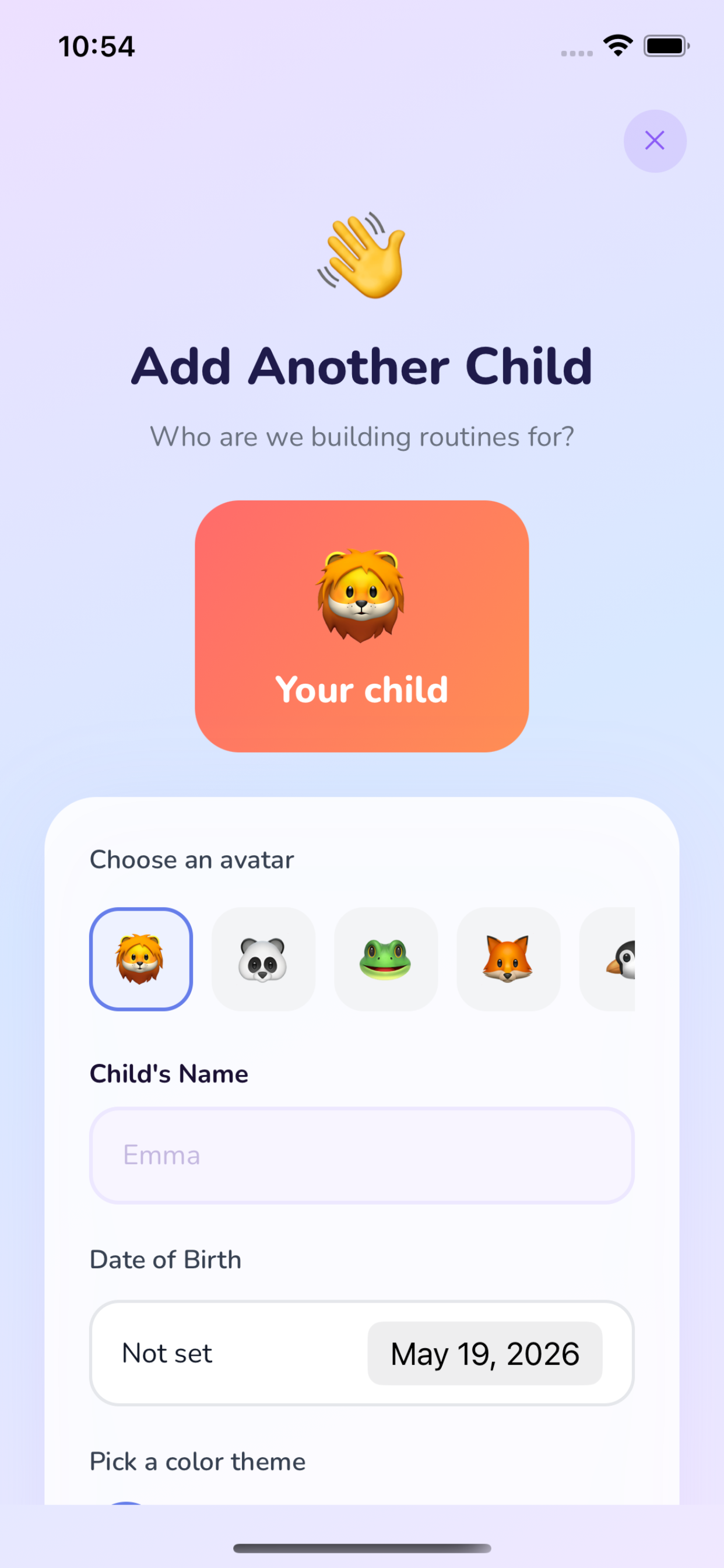
c. Overview of the home screen
The home screen is your daily command centre. From top to bottom:
- Child switcher — a row of circular avatars. Tap one to switch between children.
- Today's routines — cards showing each routine scheduled for today, with a progress bar and a completed/total task count.
- Points balance — earned, redeemed, and available points for the selected child.
- Badges — recent milestones the child has unlocked.
3. Managing Children
a. Switching between children
Tap any avatar in the child switcher at the top of the home screen. The routines, progress, and points shown below update instantly for that child.
b. Editing a child's profile
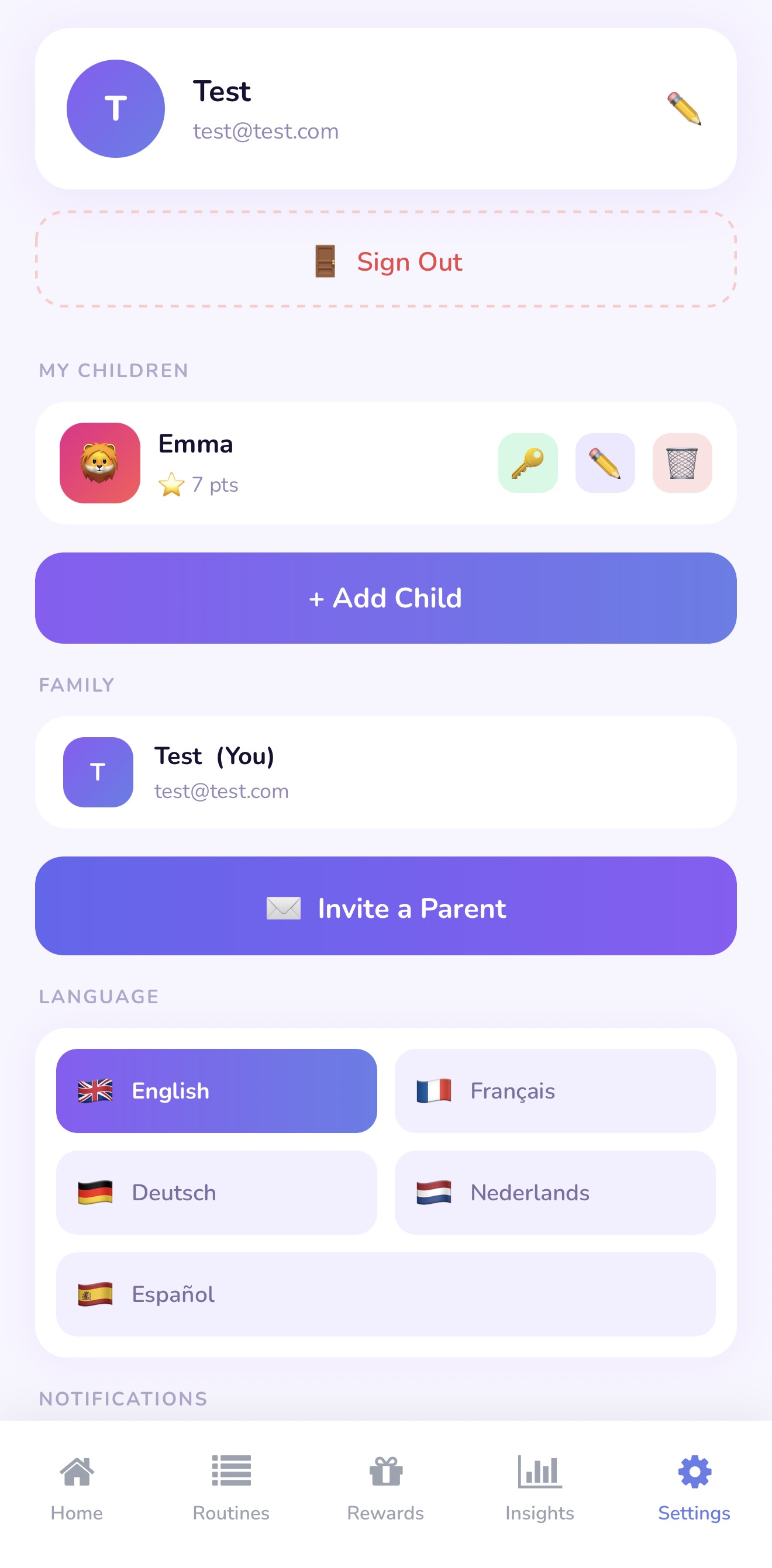
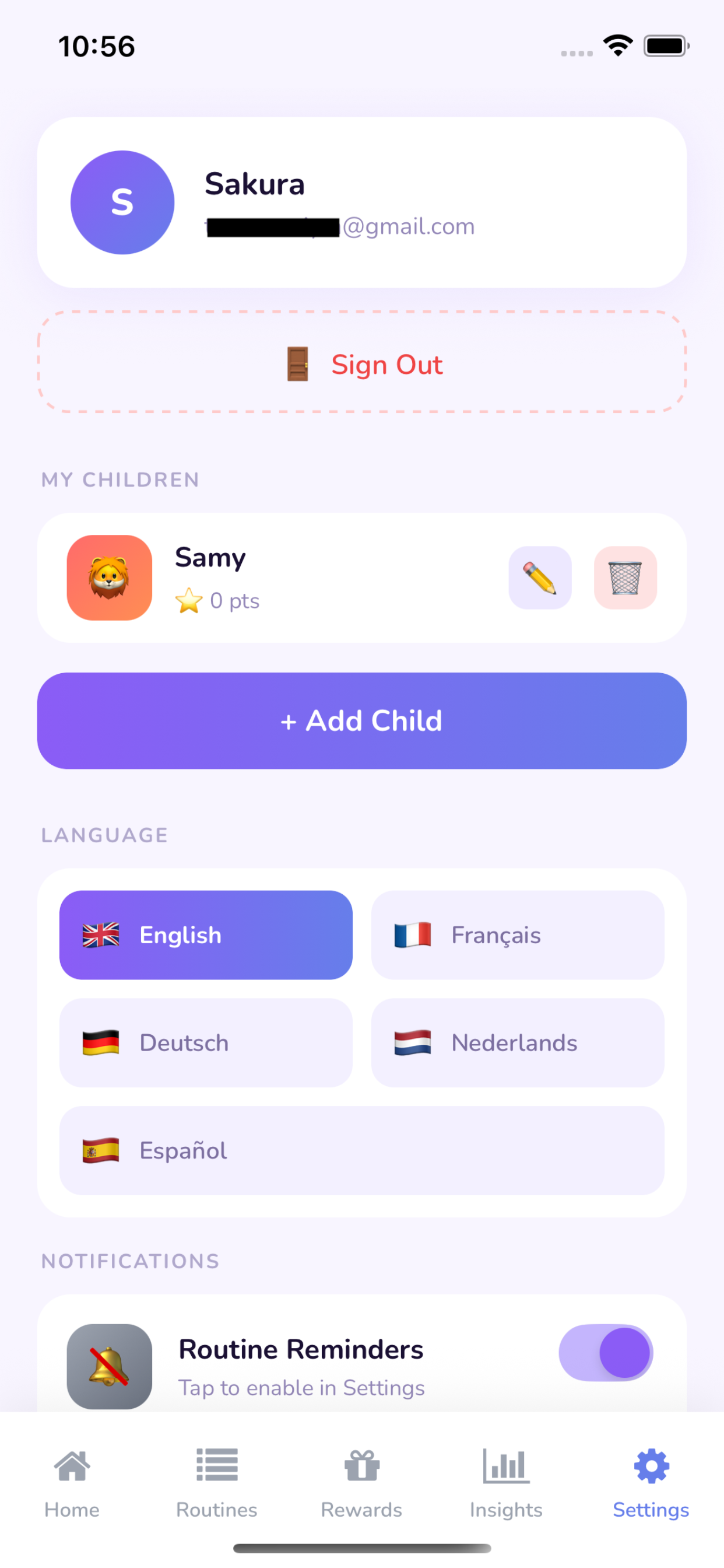
- 1Tap Settings (gear icon in the bottom navigation bar).
- 2Under Children, tap the pencil icon next to the child's name.
- 3Change the name, avatar, color theme, or date of birth.
- 4Tap Save.
c. Deleting a child
- 1Go to Settings → tap the bin icon next to the child's name.
- 2Scroll to the bottom and tap Delete Child.
- 3Confirm when prompted.
Deleting a child permanently removes all their routines, task history, and points. This action cannot be undone.
4. Routines
a. Creating a routine
- 1Tap Routines in the bottom navigation bar.
- 2Tap + (add button).
- 3Enter a title (for example, 'Morning Routine').
- 4Choose the time of day: Morning, Afternoon, or Evening.
- 5Select which days of the week this routine should appear.
- 6Optionally set a start time (for example, 7:00 AM).
- 7Tap Save.
b. Adding tasks to a routine
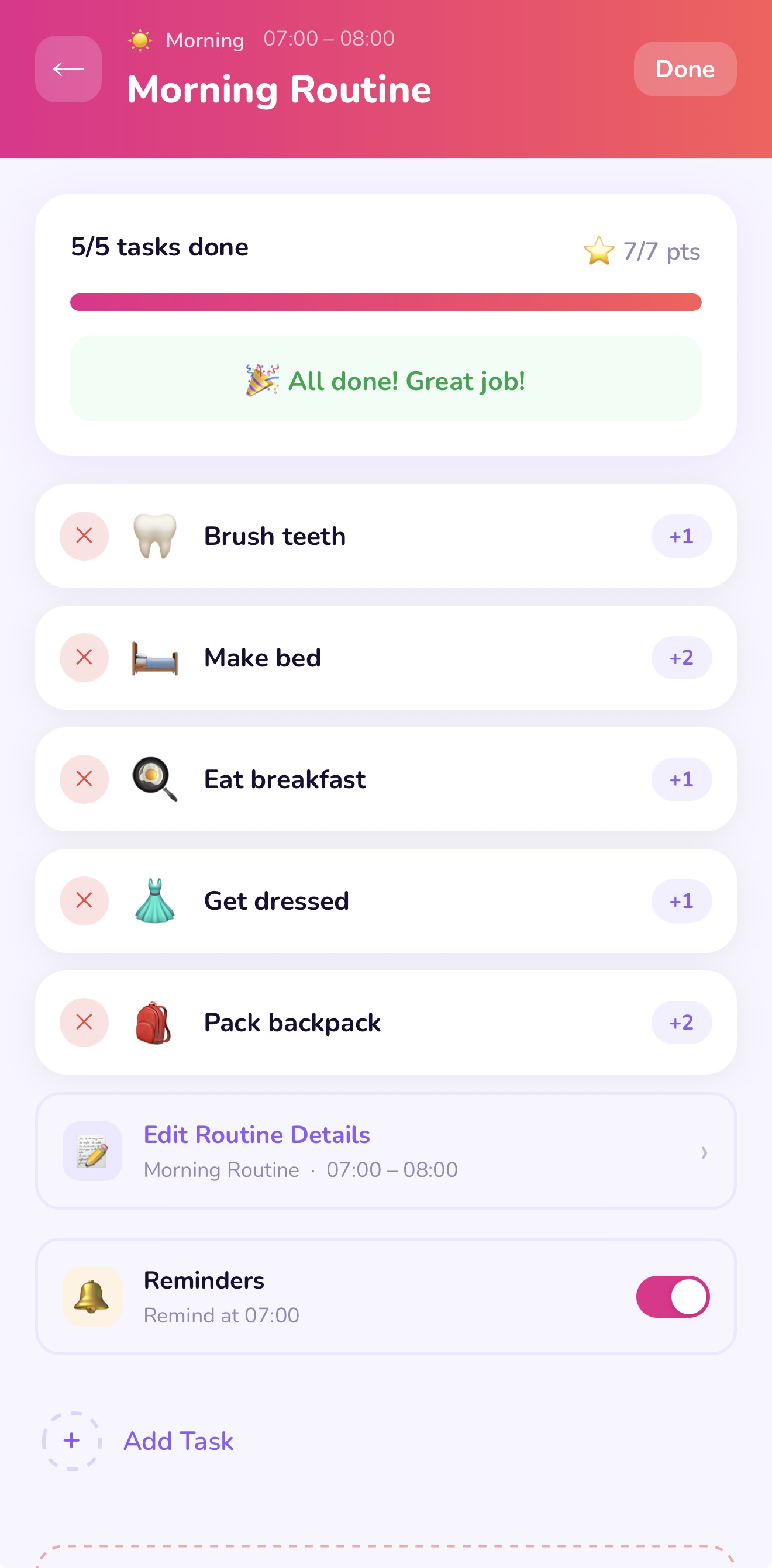
- 1Open the routine (tap its name in the Routines list).
- 2Tap Add Task.
- 3Choose an emoji to represent the task.
- 4Enter a title (for example, 'Brush teeth').
- 5Optionally enter a duration in minutes.
- 6Tap Save.
- 7Repeat for every task in the routine.
c. Editing tasks
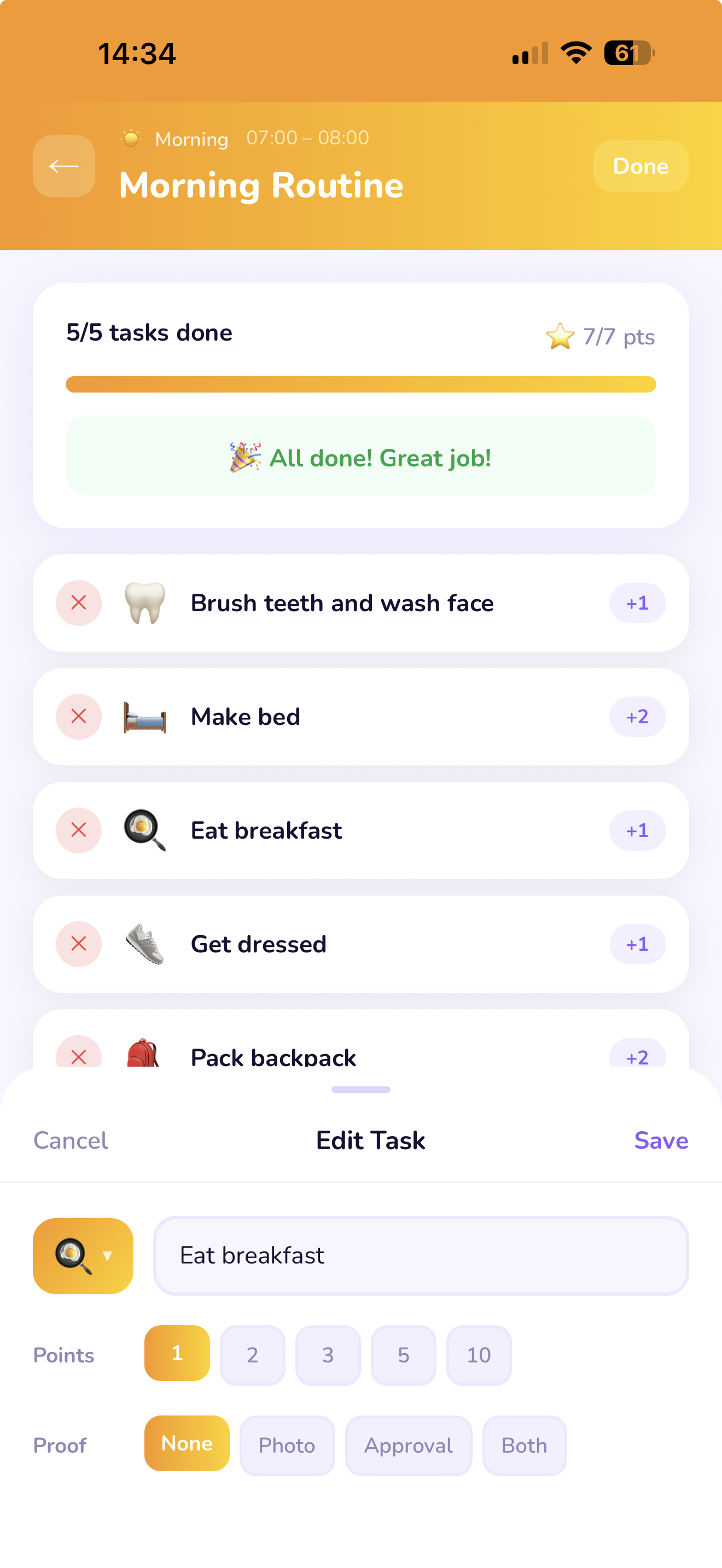
- Edit: Tap a task to open its form, make your changes, then tap Save.
d. Archiving a routine
- 1Open the routine.
- 2Tap the pencil (edit) icon.
- 3Scroll to the bottom and tap Archive Routine.
- 4Confirm when prompted.
5. Daily Progress
a. How to mark tasks as done
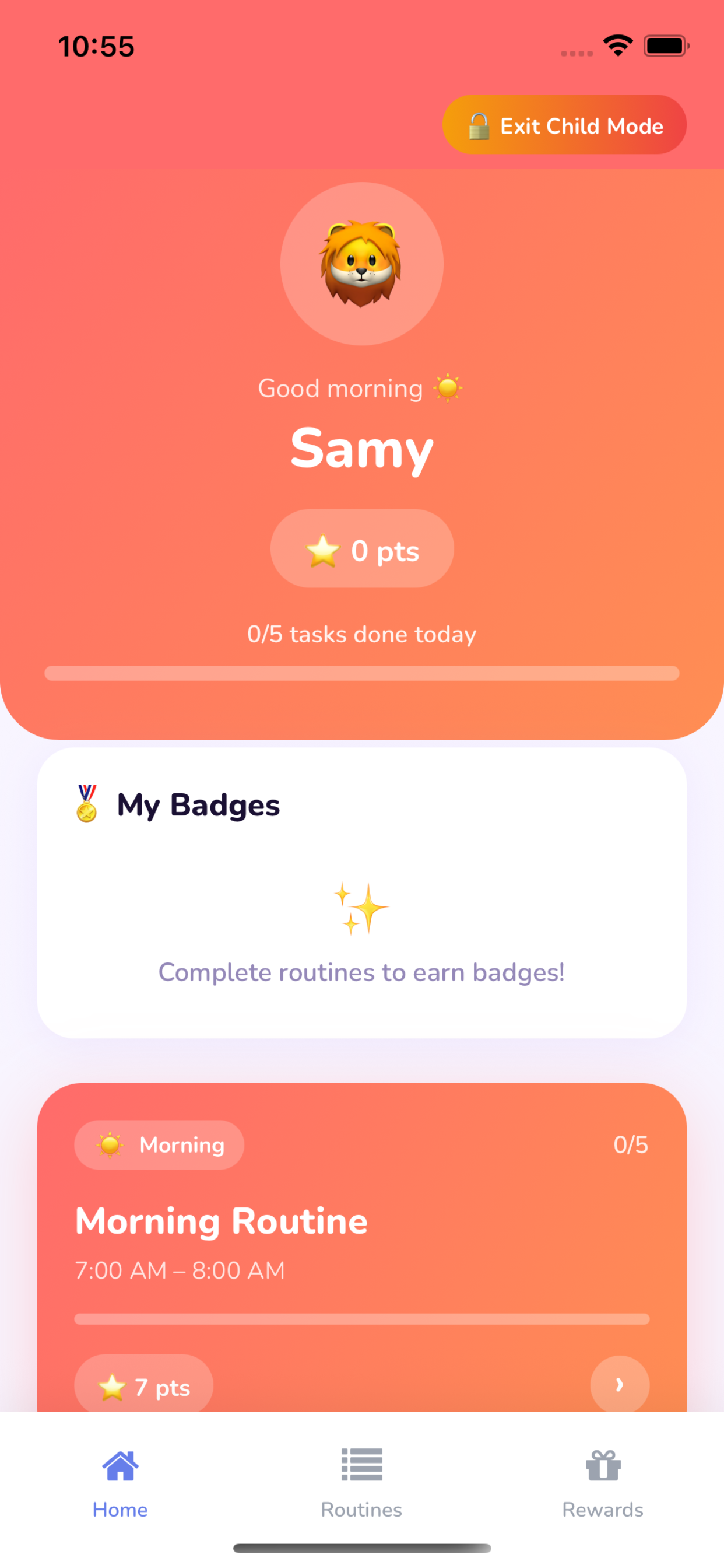
In child mode: Your child taps the circle next to a task to mark it complete.
In parent mode: You can tap the same circle on your screen to mark a task complete on your child's behalf.
b. Earning points
Points are awarded automatically when your child completes a task in a routine. The points are added to their balance instantly.
c. Viewing today's progress
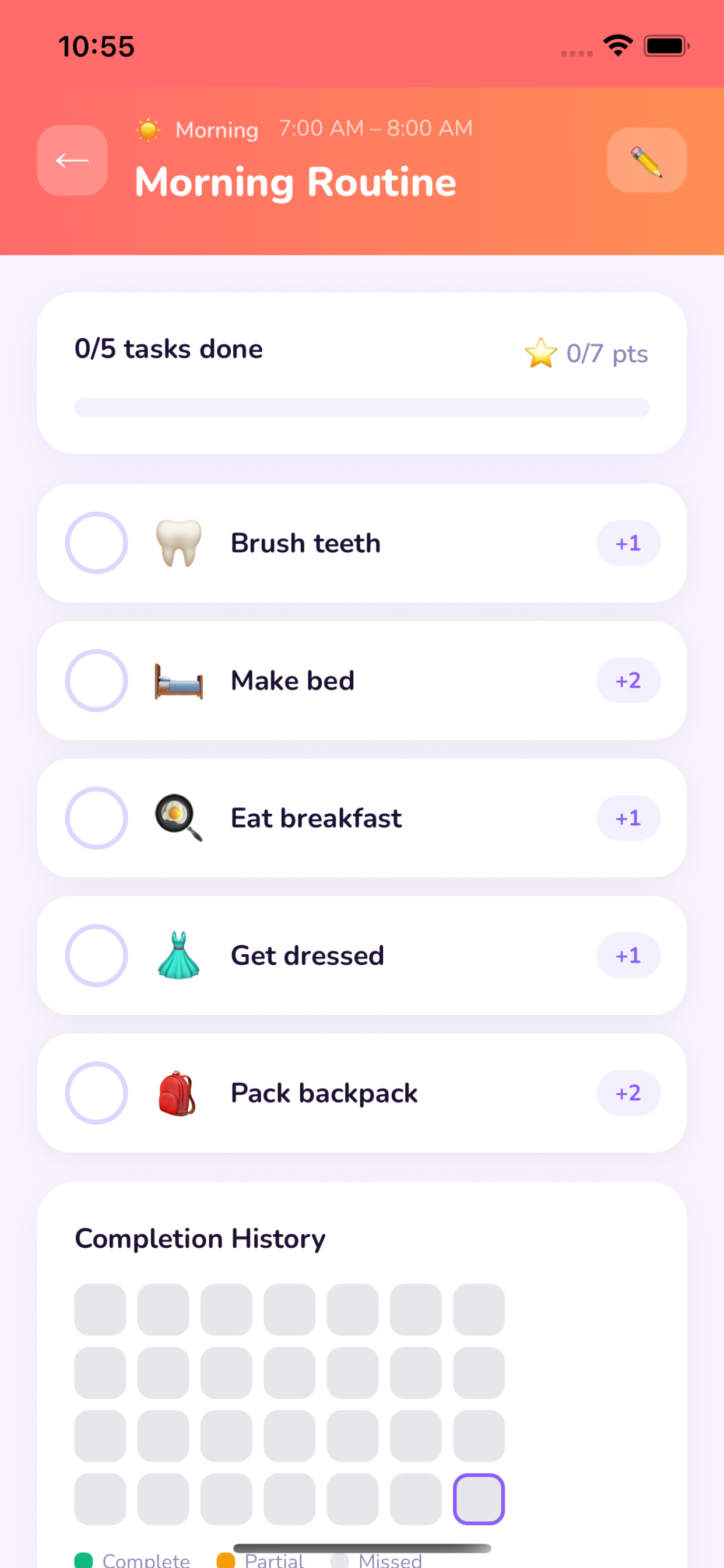
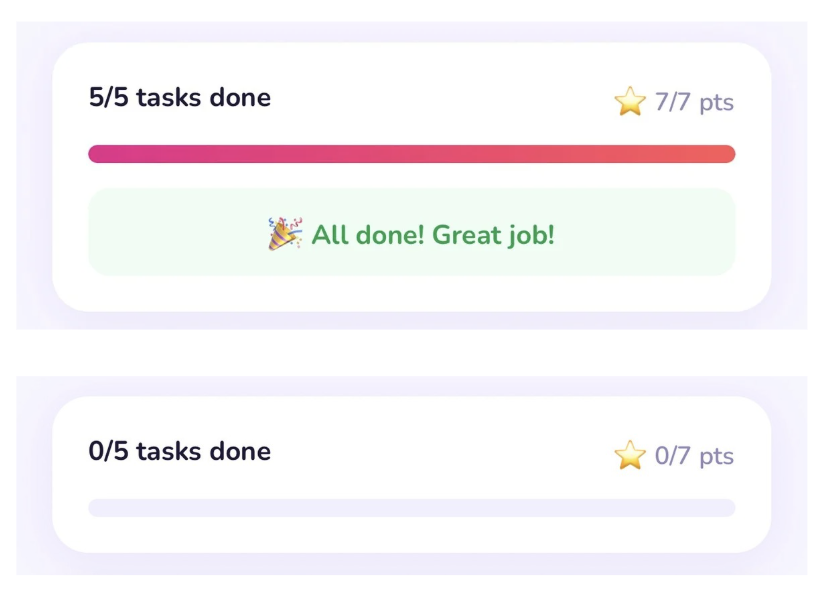
Each routine card on the home screen shows:
- A progress bar filling as tasks are completed.
- A task count (for example, '3 / 5 tasks done').
- A green checkmark when the entire routine is finished.
6. Rewards
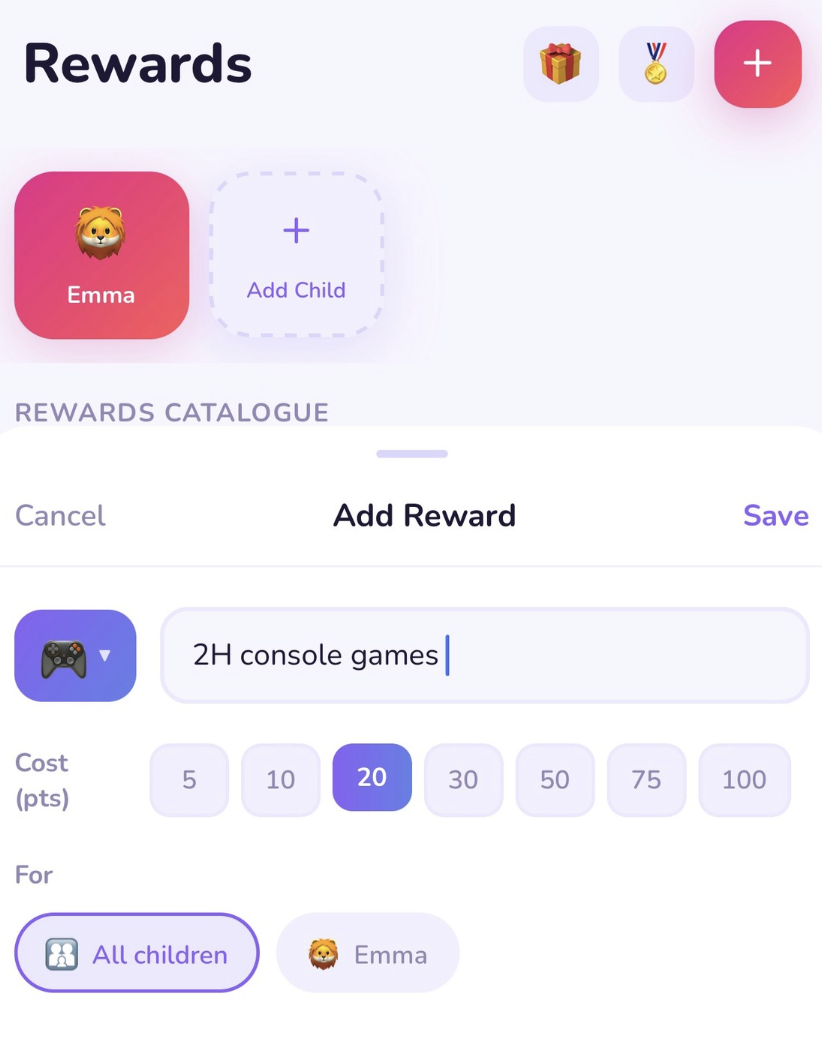
a. Creating a reward
- 1Tap Rewards in the bottom navigation bar.
- 2Tap +.
- 3Choose an emoji for the reward.
- 4Enter a name (for example, 'Extra screen time').
- 5Set the point cost — how many points your child must spend to claim it.
- 6Tap Save.
b. How children redeem rewards
In child mode, your child:
- 1Taps Rewards.
- 2Browses the catalogue.
- 3Taps a reward they want (only available if they have enough points).
- 4Confirms the request — the redemption is sent to you for approval.
c. Approving or rejecting a redemption request
- 1Open Routina on your device.
- 2A notification or badge alerts you to a pending request.
- 3Go to Rewards → Pending Requests.
- 4Tap the request to review it.
- 5Tap Approve — points are deducted and the reward is marked as claimed — or Reject to decline.
7. Child Login
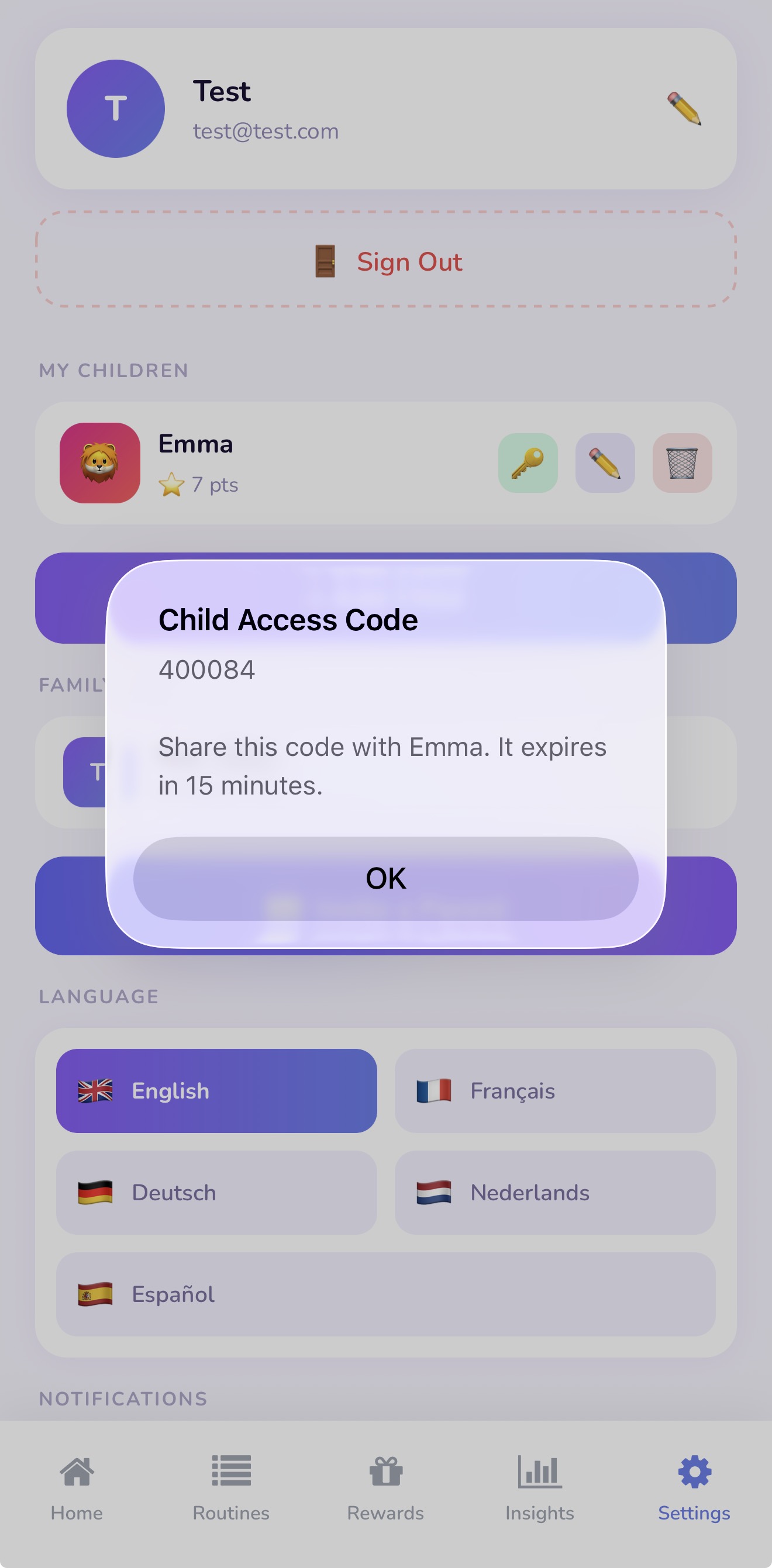
a. Generating a 6-digit code for a child
- 1Go to Settings → tap the key icon next to the child's name.
- 2A 6-digit code appears. It is valid for 15 minutes.
b. How the child enters the code
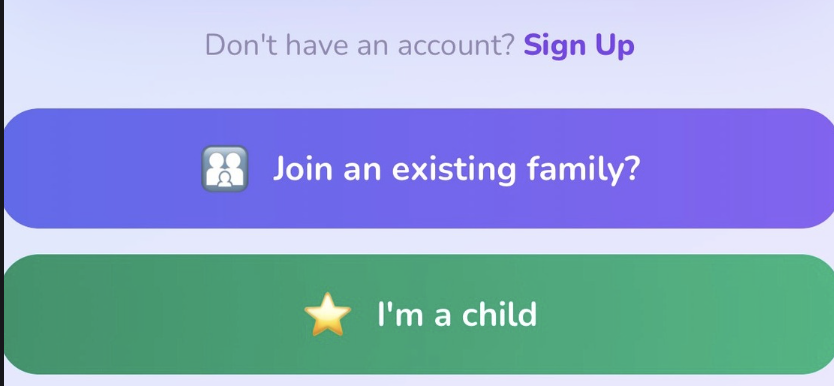
- 1Hand the device to your child, or they open Routina on their own device.
- 2On the opening screen, your child taps I'm a Child.
- 3They type in the 6-digit code.
- 4They land directly in child mode.
If the code expires before your child enters it, go back to Settings and generate a new one — it only takes a second.
c. What the child sees in child mode
Child mode shows only what the child needs:
- Today's routines and tasks.
- Their points balance and badge progress.
- The reward catalogue.
All parent settings, other children's profiles, and analytics are hidden.
8. Family Sharing
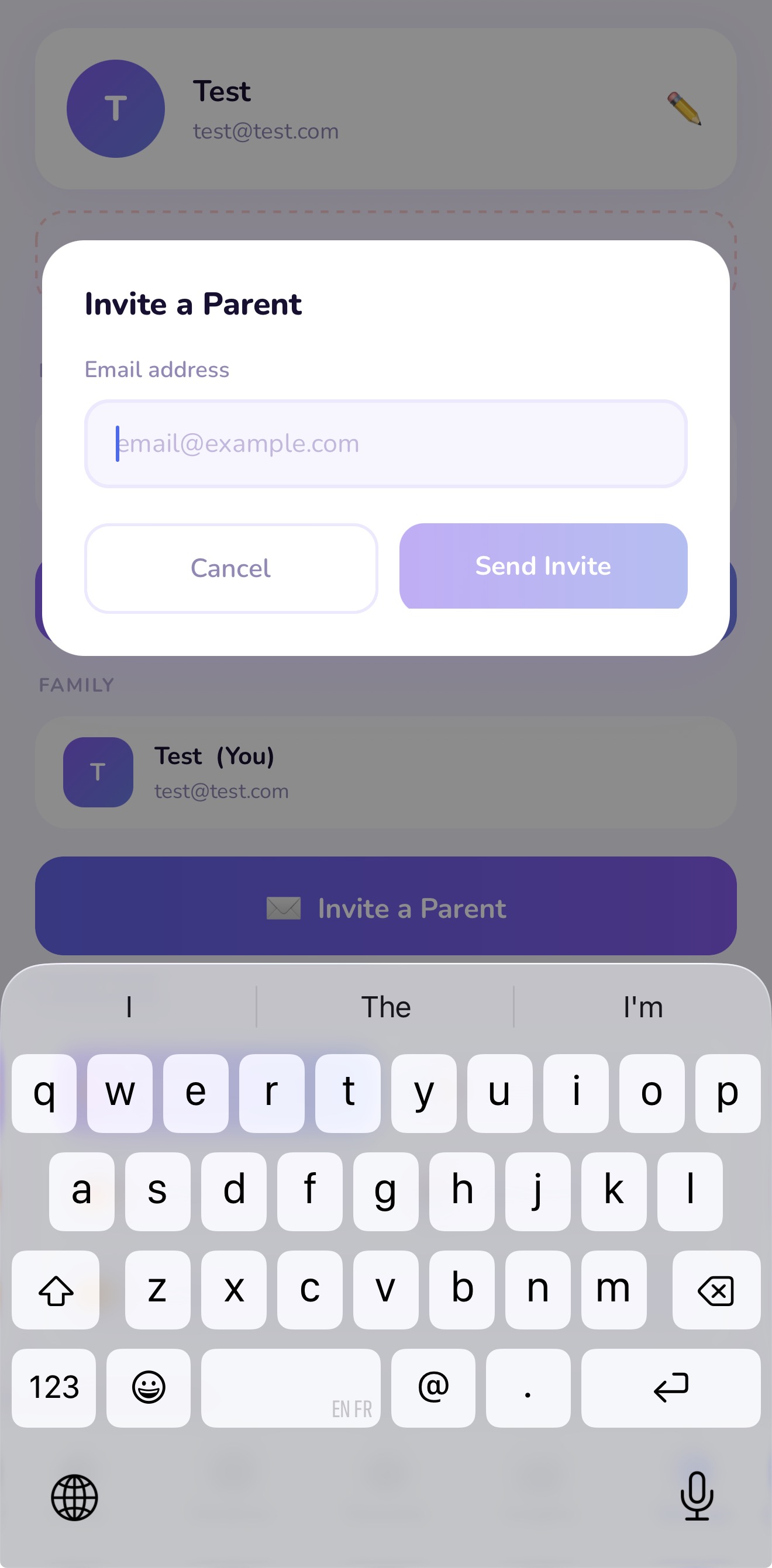
a. Inviting a co-parent
- 1Go to Settings → Family.
- 2Tap Invite Co-Parent.
- 3Enter the co-parent's email address.
- 4Tap Send Invitation.
The co-parent receives an email with a link to download the app and join your family space.
b. What a co-parent can do
A co-parent has full access to your family space:
- View and edit all children, routines, and tasks.
- Mark tasks complete.
- Approve or reject reward redemptions.
- Generate child login codes.
- Manage the reward catalogue.
9. Analytics & Badges
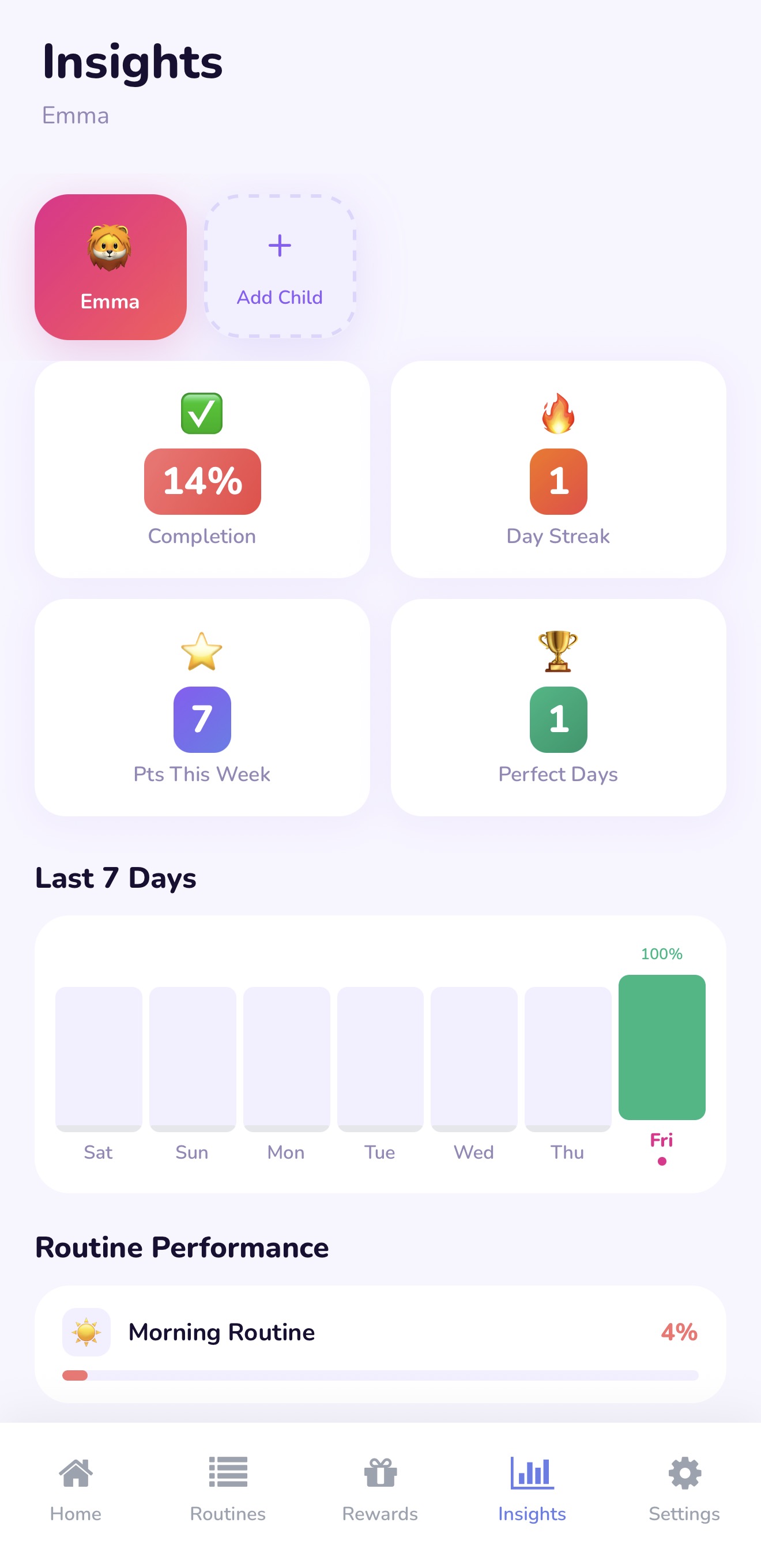
a. Reading the Insights tab
Tap Insights in the bottom navigation bar. For the selected child you will see:
- Current streak — the number of consecutive days they completed at least one full routine.
- Completion rate — the percentage of tasks finished on time over the last 30 days.
- Calendar view — green = all routines done, amber = partial, grey = missed.
b. How badges are earned
Badges unlock automatically when a child reaches a milestone, such as:
- Completing a routine 7 days in a row.
- Reaching a total points threshold.
- Finishing every task in an entire week.
The next time your child opens the app after unlocking a badge, they see a celebration animation. Badges are displayed on the home screen and in the Insights tab.
10. Notifications
a. Enabling routine reminders
- 1Go to Settings → Notifications.
- 2Turn on Routine Reminders.
Routina will send a push notification at the start time of each active routine.
Make sure your device's system settings allow notifications for Routina. Check Phone Settings → Routina → Notifications if reminders are not arriving.
11. Settings
a. Changing the app language
- 1Go to Settings → Language.
- 2Choose from: English, French, German, Dutch, or Spanish.
- 3The app reloads in the new language.
b. Editing your profile name
- 1Go to Settings → Edit Profile.
- 2Change your display name.
- 3Tap Save. The change appears everywhere in your family space immediately.
c. Deleting your account
- 1Go to Settings → Account → Delete Account.
- 2Read the confirmation message carefully.
- 3Tap Confirm Delete.
What gets removed: your parent account, all children's profiles, all routines and task history, all reward catalogues, and all points data — permanently deleted. You can also request deletion at joinroutina.com/delete-data.
d. Privacy policy
Read the full privacy policy at joinroutina.com/privacy.
12. Troubleshooting / FAQ
Child code not working
- Code expired — codes are only valid for 15 minutes. Go to Settings → [child's name] → Generate Login Code to create a fresh one.
- Wrong screen — make sure your child taps I'm a Child on the opening screen before entering the code.
- No internet — both devices need an active internet connection for the code to be accepted.
Routine not showing today
- Check that today's day of the week is selected in the routine's scheduled days.
Points not updating
Points are only awarded when task in a routine is completed or needs to be approved by a parent.
Can't sign in with Google on Android
- Make sure the Google app is installed and you are already signed in to your Google account on the device.
- Sign out and back in to your Google account on the device, then try again in Routina.
- As an alternative, use email and password sign-in.